How to Change Your Default Terminal Prompt in Mac OS X

By default, when you open up a new Terminal window in Mac OS X the command prompt displays a relatively long name:

I prefer to shorten this to a simple dollar sign ($) in order to free up space.

To change your default command line prompt, follow these instructions:

1) Navigate to your home directory:

cd ~

2) Create a file called .bash_profile

vi .bash_profile

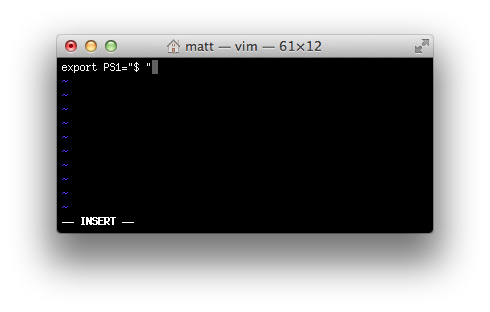
3) Add the following line (press i)

export PS1="$ "

4) Save the file (press Escape, type :wq and hit Enter)

5) Restart Terminal

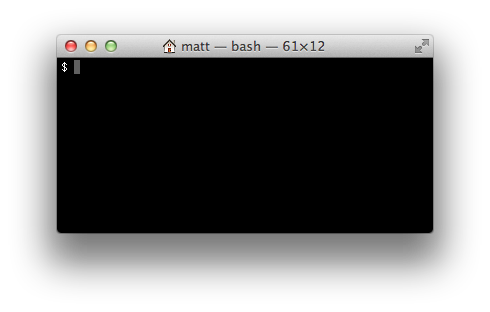
You should now see something like this:

There are other ways you can configure the command prompt (for example, showing the current time), but I prefer to keep it simple.

How to Change Your Default Screenshot Location on Mac OS X Lion

I’m just getting around to setting up my new Macbook Pro and figured I’d document my experiences in case it helps anyone else.

In order to write tutorials I need to take screenshots and by default Mac’s save screenshots to the Desktop, which I don’t like because  the Desktop tends to get cluttered very quickly.

Instead, I prefer to keep them in a separate folder reserved only for screenshots.

To change the default screenshot location, follow these instructions:

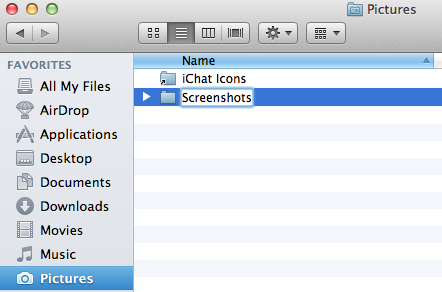
1) Create a folder called Screenshots in your Pictures folder (or wherever):

2) Open up Terminal and enter the following (one line):

defaults write com.apple.screencapture location /Users/yourlogin/Pictures/Screenshots

(Replacing yourlogin with your login name.)

3) Restart your computer for the changes to take effect

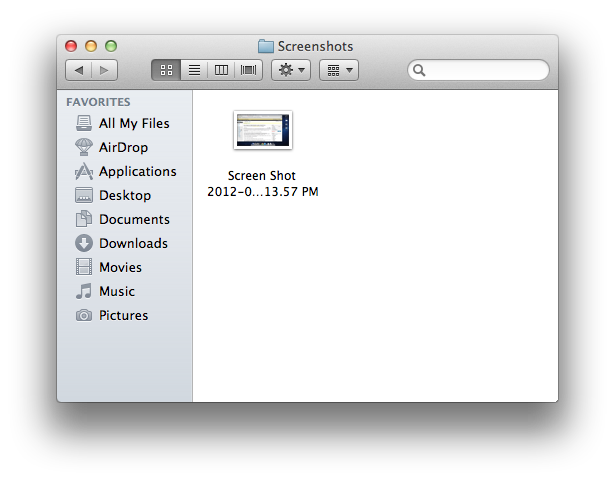
After you restart, new screenshots will be automatically saved to the Screenshots folder instead of the Desktop:

Hat tip to Macworld for the original instructions.

New Twitter Name: @mhmazur

Hey everyone, I just changed my Twitter name from @leandesigns to @mhmazur. If you were following @leandesigns, it should have automatically updated for you.

I originally set up the @leandesigns account after I renamed jMockups to Lean Designs, but never really found the right balance between using it for marketing and using it for personal use. I’m not much of a Twitterer (?), but saying Hi to friends from a company’s Twitter account seemed awkward. I probably should have used it more to engage with folks looking for a web design tool, but that always seemed too spammy (which is probably wrong).

Anyway, I think I’ll use it more now that it’s just a personal account. Feel free to say hi @mhmazur.

How to Switch Your Cedar Heroku App from Webrick to Thin

Received an en email today from Cody K on my use of Webrick in production for Lean Domain Search:

Hey Matt,

Lean Domain Search is really neat – thanks for making it available.

Just wanted to let you know that it’s a really bad idea to run Ruby web apps with Webrick in production – you should be using something like nginx and either Unicorn or Passenger. Those are battle-hardened and production-ready, whereas Webrick’s sole purpose is for development environments, and, as such, is not heavily tested (if at all) for security issues and whatnot.

Just a friendly heads up. :) Thanks again.

Heroku’s Rails 3 docs are also pretty clear on this and I remember reading it during my initial upgrade, but never got around to actually doing it.

Thin is a recommended app server over Webrick (the default for rails).

Switching to Thin is pretty easy:

1. Add gem 'thin' to your Gemfile:
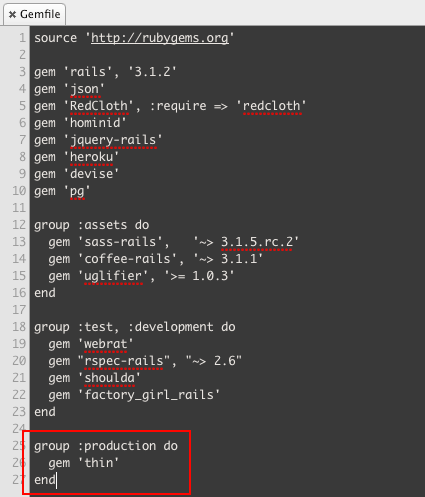
I added it to the production group because I want to keep using Webrick in development for now.

2. Make sure that you run bundle install to update your Gemfile otherwise you’ll receive a warning like this when you push to Heroku:

You are trying to install in deployment mode after changing
your Gemfile. Run `bundle install` elsewhere and add the
updated Gemfile.lock to version control.
You have added to the Gemfile:
* thin

3. Add a Procfile to your root directory to instruct Heroku to use Thin instead of Webrick:

4. Commit and push your updated app to Heroku.

If all went well, you should see something like this in your logs:

2012-01-18T12:44:33+00:00 app[web.1]: >> Using rack adapter
2012-01-18T12:44:33+00:00 app[web.1]: >> Thin web server (v1.3.1 codename Triple Espresso)
2012-01-18T12:44:33+00:00 app[web.1]: >> Listening on 0.0.0.0:38951, CTRL+C to stop
2012-01-18T12:44:33+00:00 app[web.1]: >> Maximum connections set to 1024
2012-01-18T12:44:34+00:00 heroku[web.1]: State changed from starting to up

Too easy.

One thing confused me though: How did Cody know that I was using Webrick? I emailed him and asked.

His response:

I mistakenly typed some bogus characters in at the end of my address bar while I was on your site…something like this: http://www.leandomainsearch.com/search?q=up^jf

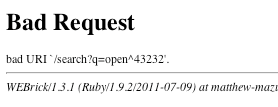
Sure enough, Webrick fails loudly when the URL includes a caret:
Touché.