My New Home Office, Courtesy of Automattic and Applied Ergonomics

One of the less well-known benefits of working at Automattic, the company behind WordPress.com, is that they will contribute $2,000 towards improving your home office.

My back, neck, and wrists have been slowly worsening over the last few years so when I found out from my mentor, Daryl Houston, that Automattic would contribute money towards a new setup, I jumped at the opportunity. I emailed Lori McLeese, our ever-helpful HR lead, and she introduced me to Automattic’s ergonomic consultant, Jeff Meltzer.

Jeff founded and is the president of Applied Ergonomics, an Illinois-based furniture dealership that works with Automattic employees to solve just the type of issues that I was having. Every Automattic employee he works with receives a custom setup based on their specific requirements. Jeff recently wrote about his experience working with Automattic employees in a post titled Making Happiness Engineers Happier & Healthier One Ergonomic Consultation at a Time.

Jeff and I set up a time to video chat over Skype and wound up talking for almost two hours (Automattic pays for the consultation and the cost is separate from the $2,000 contribution). For the majority of the conversation we discussed my current home office and the issues I was experiencing. I appreciated that he was not just trying to sell me something based on some preconceived idea of what my issues were. He was really trying to understand my situation: How much time did I normally spend at a computer each day? Had I ever tried a standing desk? What was my normal posture? Where was I having pain? We positioned and repositioned my laptop so that he could see my current setup. I took measurements and he took lots of notes.

It was not until the last half hour of the conversation that he started to propose possible solutions. We looked at several different desks, chairs, keyboards, and mice. In the end I wound up purchasing an adjustable desk, a new chair, and a monitor arm.

Home Office: Before

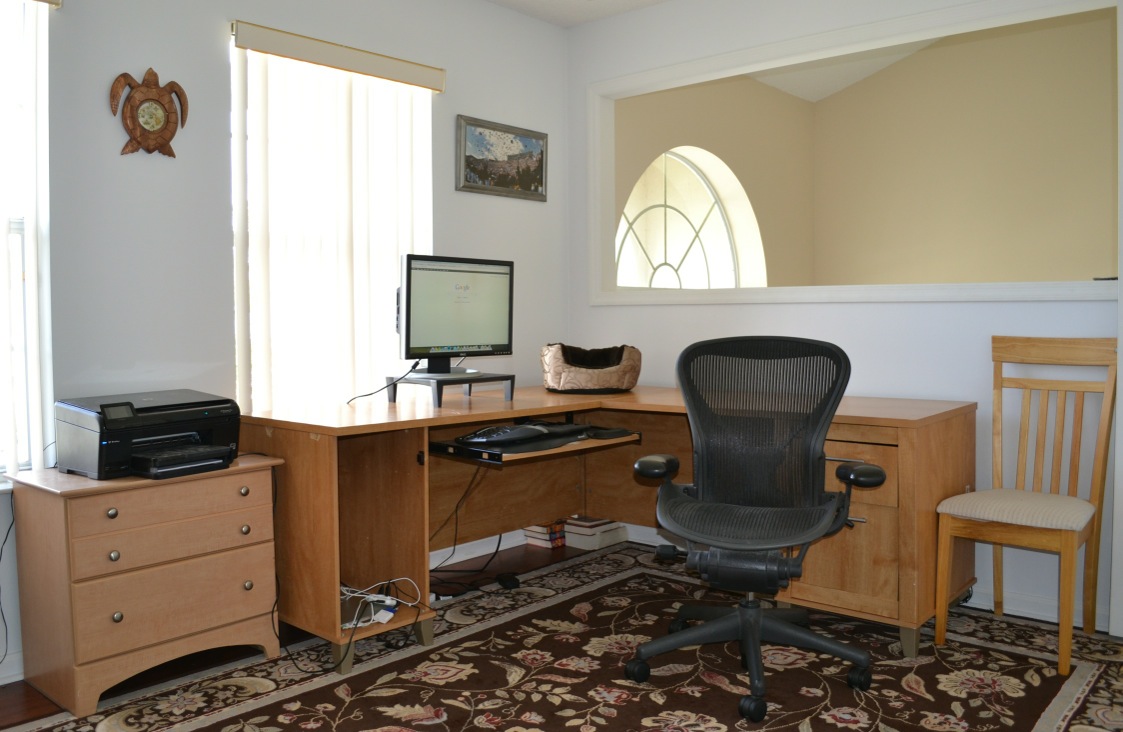
Before the new furniture arrived, this is what my home office looked like:
desk_old

The four year old L-shaped Office Max desk had been through three moves across three states and was not doing so well. The back corner was propped up by books and the surface was warped from setting too many drinks on it.

The chair is an Herman Miller Aeron chair that I purchased off of Craigslist back in 2010 when I first started experiencing back issues.

The 24″ Dell monitor is propped up by a small monitor stand. The monitor is connected to a Macbook Pro which sits on the bottom left shelf.

The keyboard is a Microsoft Ergonomic Keyboard 4000 that I’ve been using for many years.

The kitchen chair on the right allowed my rat terrier to get onto the desk to hang out in her little dog bed.

Home Office: After

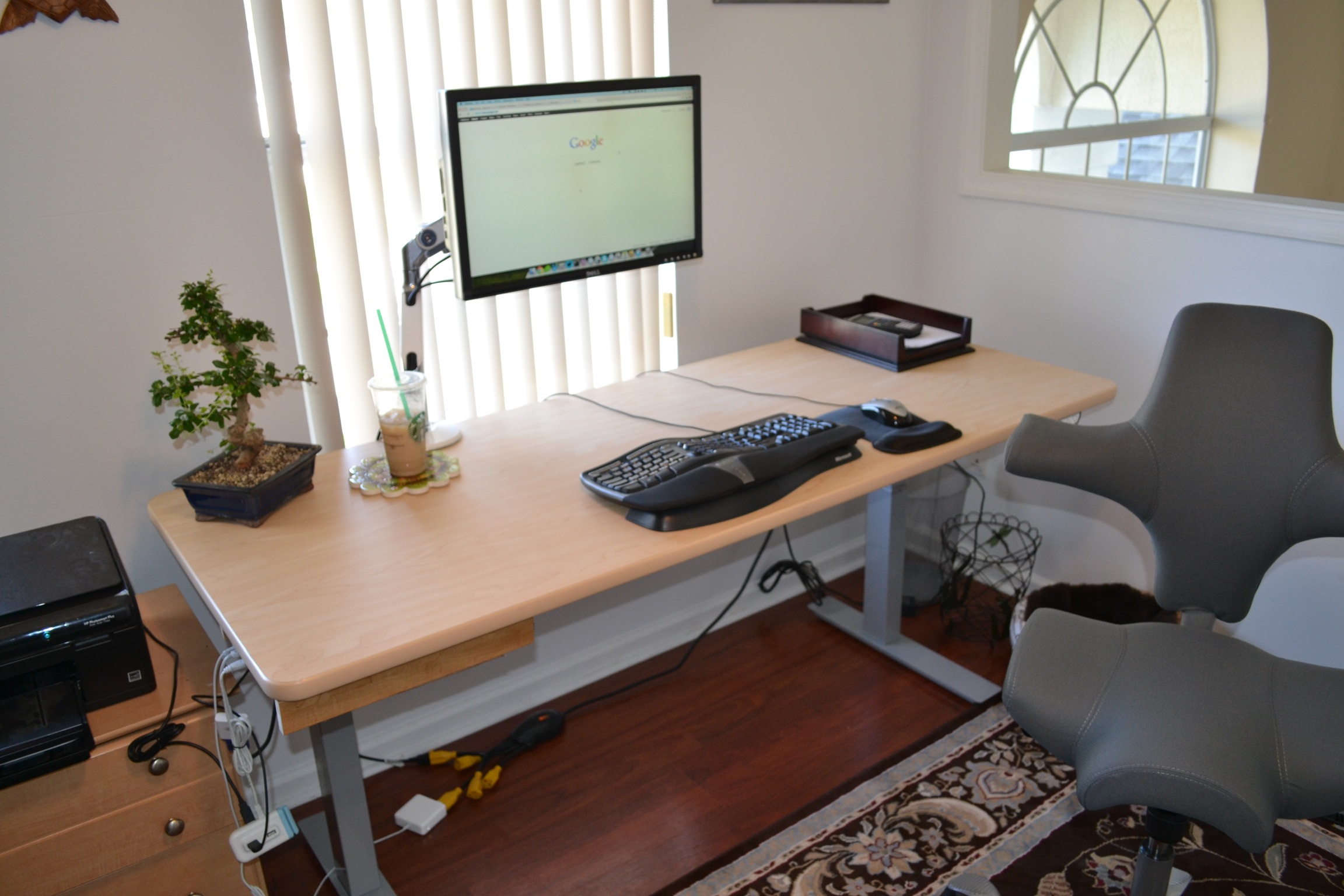
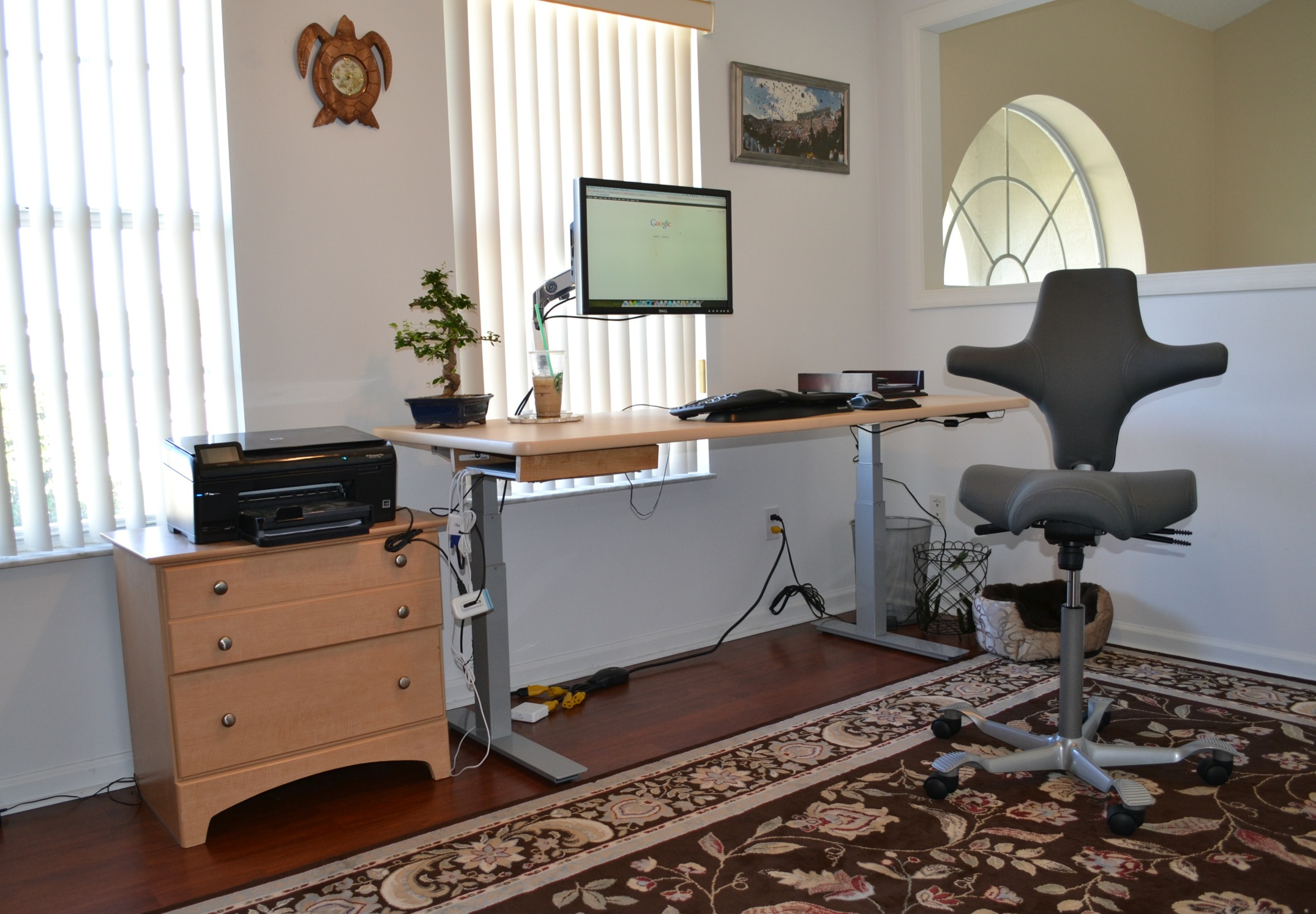
I present to you my new home office:
seated

DSC_0006

The Chair

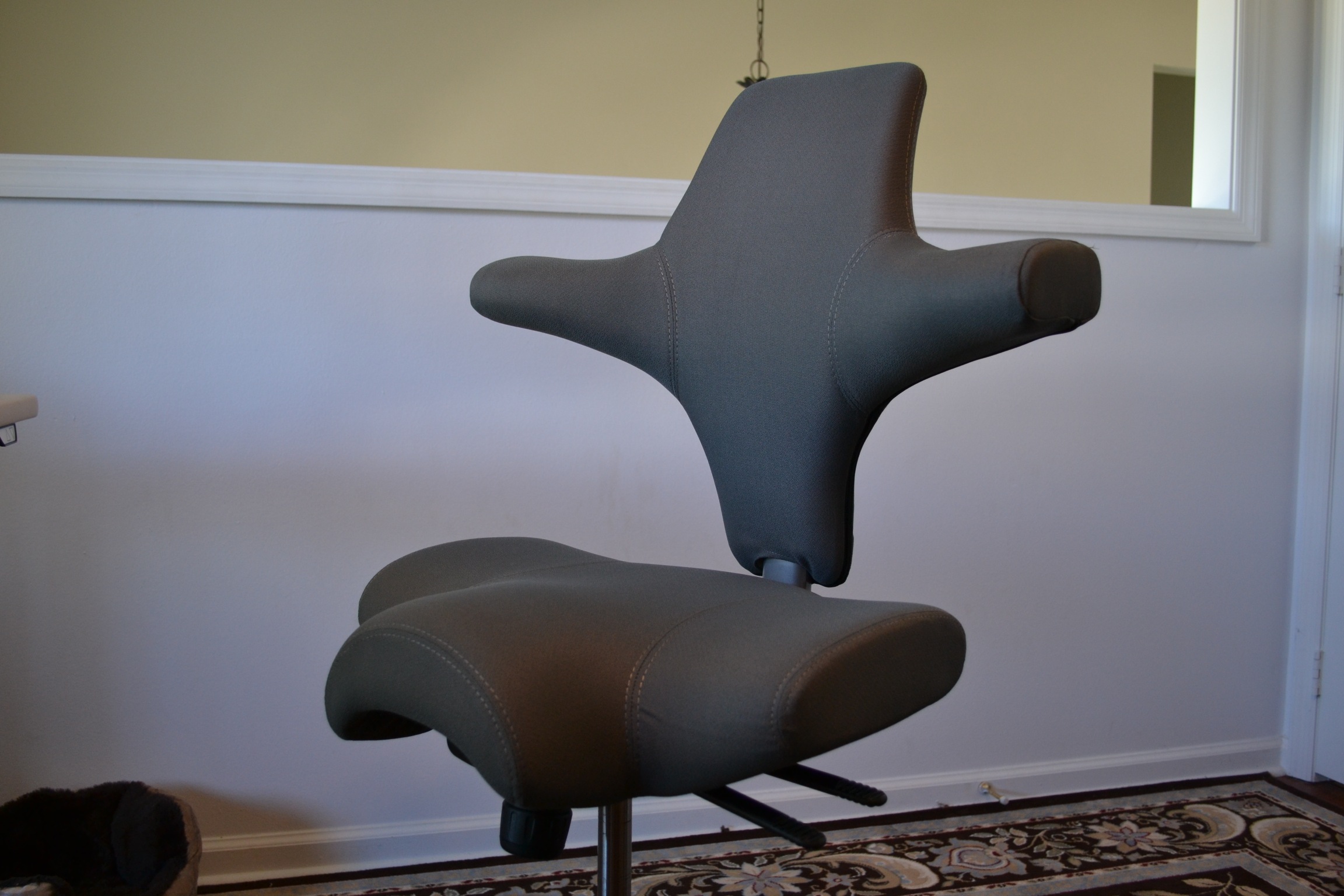
The chair is a HÅG Capisco 8106 [1]:
DSC_0020

There are a few things I really like about this chair:

First, it doesn’t have arms. It has these two little nubs that protrude from the back where you can rest your elbows. Because they’re so far back, it forces you to keep your elbows back which encourages good posture.

Also, the front right and left of the seat are carved out which I have found to be a lot more comfortable than one that is even on the front.

Finally, the seat’s height and depth as well as the back height can all be adjusted which makes it easy to find a position that suits you.

The Desk

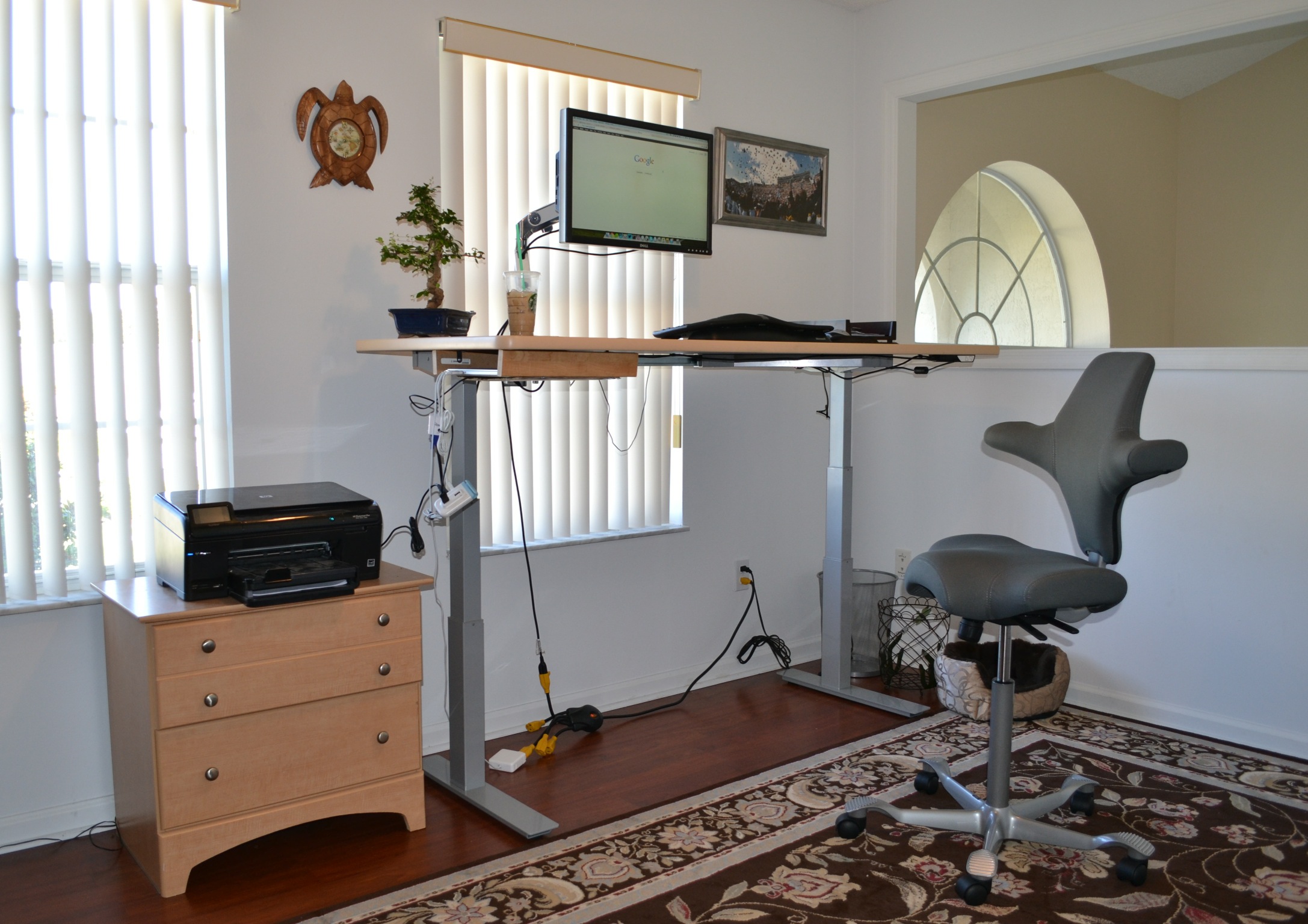
The desk is a RISE Electric Height Adjustable Desk [2] which means that it can be adjusted so that I can either sit or stand while working. Here is what it looks like in the standing position:
standing

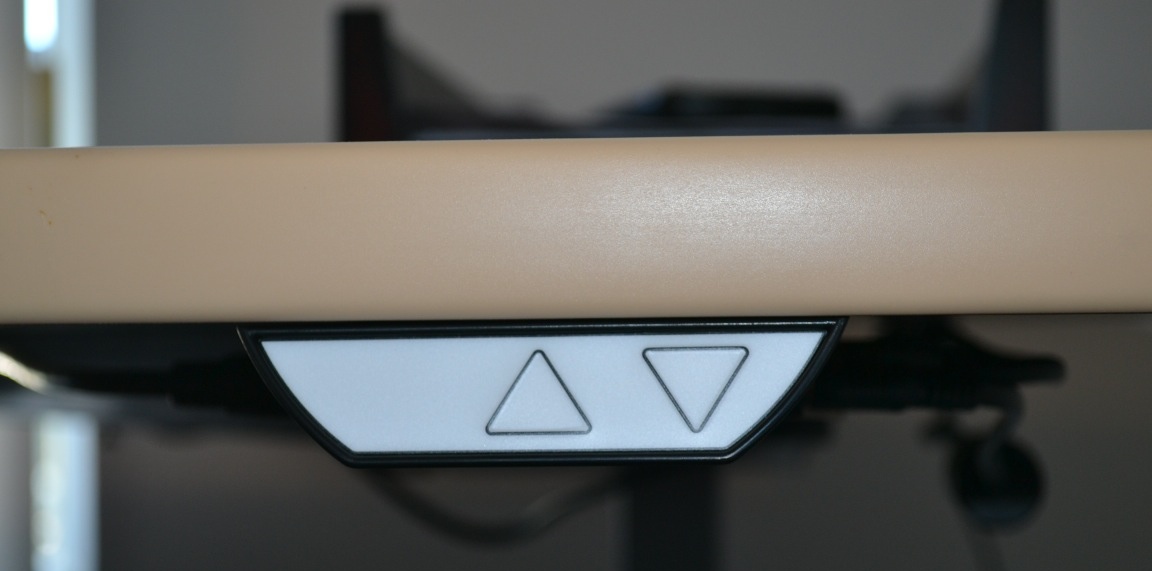
The desk has a small remote under the bottom right ledge which allows you to electronically adjust it up and down:
control

One of the nice things about the RISE desk is that it has a very sparse under-surface structure which makes it easy to install a keyboard tray (something I might get in the future) or a small shelf. I did wind up building a small one underneath the bottom left side (which you can see in the picture above) to hold my laptop because I don’t use it as a second monitor and therefore I don’t need to have it out on the desk all day.

The Monitor Arm

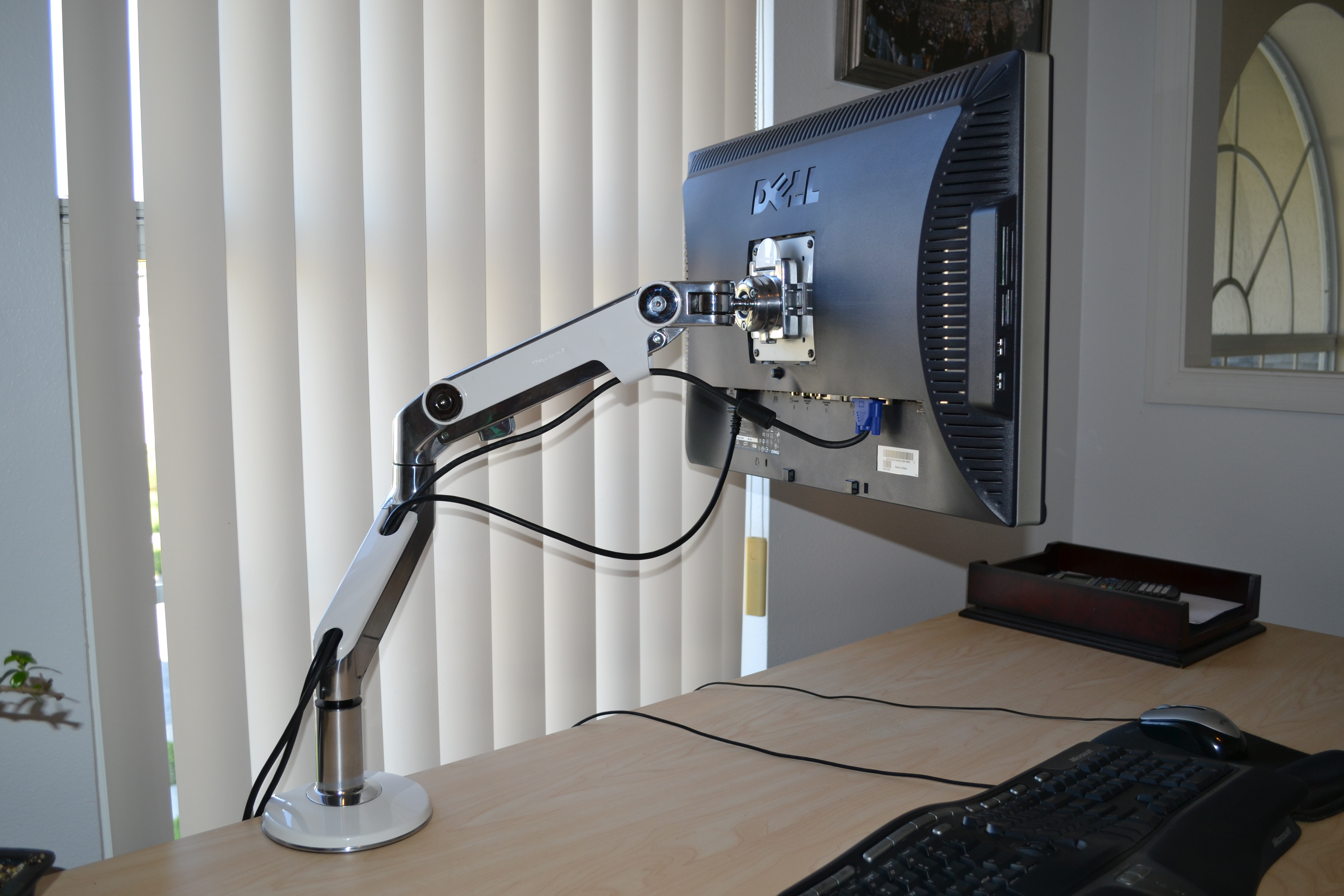
Rather than use a monitor stand like I’ve done in the past Jeff recommend purchasing a monitor arm so that I could quickly adjust the position as necessary without the constraints that a small monitor stand imposes. We went with a M8 Monitor Arm from HumanScale [3]:
DSC_0018

Finishing Touches

I kept my monitor, ergonomic keyboard and my mouse because I didn’t have any issues with them.

DSC_0007

I also bought a Bonsai tree which I think adds a nice dash of color to the office. I also stole one of my wife’s hot plates so I can set dishes and drinks down without messing up the surface of the desk:

Initial Impressions

The total cost with shipping came out to be slightly over $2,000. Because the final price was over Automattic’s allowance, I did have to pay a small amount out of pocket but that was fine by me. I considered going with one of the cheaper versions of the chair, desk, or monitor arm but given how important it is to my productivity and happiness that I am comfortable while working, it was easily worth the small extra expense.

I’ve been using this new setup for about two weeks and so far I absolutely love it. I typically stand for about half of the day: either two hours standing/two hours sitting or half the day standing/half sitting (I’ll write a follow-up blog post in a few months once I’ve been using it longer to share what I’ve learned).

My back and neck pain are a fraction of what they used to be and contrary to what I would have thought I find that I have a lot more energy throughout the day.

Most importantly, I’ve found that without my normal discomfort I look for excuses to work instead of for excuses not to work which is exactly how a job should be.

Knowing what I know now, I wish I had purchased better furniture a long time ago. However, without Jeff’s help and Automattic’s contribution, I wouldn’t have known what to buy and I would have been hesitant to spend so much money on something that might or might not help. Props to Automattic for realizing how important this is and making it easy for its employees to take advantage of it.

If you have back, neck, or wrist pain and are on the fence about whether or not to buy a standing desk, I encourage you to take the leap. Even if you don’t get an expensive one you can Google around and find some cheap ones or even build one yourself. If you could use professional opinion, I’m sure Jeff would be happy to help as well. You can email him at jmeltzer [at] appliedergonomics.com.

Finally, if you have any recommendations on how to improve this setup based on your own experience, please feel free to leave a comment below or drop me a note at matthew.h.mazur [at] gmail.com. Thanks!

###

Notes:

[1] The actual line item was: “Capisco saddle seat with back in Grade 1 (Insight Stately) with carpet casters and a tall lift.”

[2] There were two line items for the desk, one for the work surface and one for the adjustable base: “RISE Height Adjustable Worksurface – Rectangular worksurface (30″D x 72″W), 1″ High Pressure Wilsonart® Standard Laminate surface MAPLE PVC T-Mold edges” and “RISE Height Adjustable Base Electric E6P 2-parallel base (two electric motors) with low voltage DC motors, Programmable switch, 22″- 48″ Height Range, 26″ Travel Range, 1.5″/second Travel Speed, 300 lbs. maximum distributed topload capacity, Silver Finish”. The Maple edge for the work surface wound up being discontinued so we went with Latte instead.

[3] The line item was: “M8 Monitor Arm with two-piece clamp mount with base, in polished aluminum with white trim, fixed angled link/ dynamic link, and standard VESA plate.”

A Simple Genetic Algorithm Written in Ruby

I recently started making my way through An Introduction to Genetic Algorithms by Melanie Mitchell. I’m not too far into it yet but I’ve been pleasantly surprised by how clearly the author explains each concept.

In the first chapter she outlines a simple algorithm that is the basis for most applications of genetic algorithms. There isn’t any code in the book so I decided to implement it on my own in Ruby to understand it better:


POPULATION_SIZE = 24
NUM_BITS = 64
NUM_GENERATIONS = 1000
CROSSOVER_RATE = 0.7
MUTATION_RATE = 0.001
class Chromosome
attr_accessor :genes
def initialize(genes = "")
if genes == ""
self.genes = (1..NUM_BITS).map{ rand(2) }.join
else
self.genes = genes
end
end
def to_s
genes.to_s
end
def count
genes.count
end
def fitness
genes.count("1")
end
def mutate!
mutated = ""
0.upto(genes.length – 1).each do |i|
allele = genes[i, 1]
if rand <= MUTATION_RATE
mutated += (allele == "0") ? "1" : "0"
else
mutated += allele
end
end
self.genes = mutated
end
def &(other)
locus = rand(genes.length) + 1
child1 = genes[0, locus] + other.genes[locus, other.genes.length]
child2 = other.genes[0, locus] + genes[locus, other.genes.length]
return [
Chromosome.new(child1),
Chromosome.new(child2),
]
end
end
class Population
attr_accessor :chromosomes
def initialize
self.chromosomes = Array.new
end
def inspect
chromosomes.join(" ")
end
def seed!
chromosomes = Array.new
1.upto(POPULATION_SIZE).each do
chromosomes << Chromosome.new
end
self.chromosomes = chromosomes
end
def count
chromosomes.count
end
def fitness_values
chromosomes.collect(&:fitness)
end
def total_fitness
fitness_values.inject{|total, value| total + value }
end
def max_fitness
fitness_values.max
end
def average_fitness
total_fitness.to_f / chromosomes.length.to_f
end
def select
rand_selection = rand(total_fitness)
total = 0
chromosomes.each_with_index do |chromosome, index|
total += chromosome.fitness
return chromosome if total > rand_selection || index == chromosomes.count – 1
end
end
end
population = Population.new
population.seed!
1.upto(NUM_GENERATIONS).each do |generation|
offspring = Population.new
while offspring.count < population.count
parent1 = population.select
parent2 = population.select
if rand <= CROSSOVER_RATE
child1, child2 = parent1 & parent2
else
child1 = parent1
child2 = parent2
end
child1.mutate!
child2.mutate!
if POPULATION_SIZE.even?
offspring.chromosomes << child1 << child2
else
offspring.chromosomes << [child1, child2].sample
end
end
puts "Generation #{generation} – Average: #{population.average_fitness.round(2)} – Max: #{population.max_fitness}"
population = offspring
end
puts "Final population: " + population.inspect

view raw

gistfile1.rb

hosted with ❤ by GitHub

The algorithm as described in the book is quoted below with my comments following each section.

1. Start with a randomly generated population of n l-bit chromosomes (candidate solutions to a problem).

In this code, n is represented by the POPULATION_SIZE constant and l by NUM_BITS. The initial randomly generated population is created using the Population’s seed! method.

2. Calculate the fitness f(x) of each chromosome x in the population.

The fitness of a Chromosome can be calculated by its fitness method. In this example, the fitness is simply the number of 1’s that the chromosome contains.

3. Repeat the following steps until n offspring have been created:

a. Select a pair of parent chromosomes from the current population, the probability of selection being an increasing function of fitness. Selection is done “with replacement,” meaning that the same chromosome can be selected more than once to become a parent.

A chromosome is chosen from the population using the Population’s select method. This method implements fitness-proportionate selection using roulette-wheel sampling which is conceptually equivalent to giving each individual a slice of a circular roulette wheel equal in area to the individual’s fitness. The roulette wheel is spun, the ball comes to resent on one wedge-shaped slice, and the corresponding individual is selected.

b. With probability Pc (the “crossover probability” or “crossover rate”), cross over the pair at a randomly chosen point (chosen with uniform probability) to form two offspring. If no crossover takes place, form two offspring that are exact copies of their respective parents.

The crossover probability is defined by CROSSOVER_RATE. The crossover is performed by the Chromosome’s bitwise AND (&) operator which I overloaded for this class.

c. Mutate the two offspring at each locus with probability Pm (the mutation probability or mutation rate), and place the resulting chromosomes in the new population. If n is odd, one new population member can be discarded at random.

The mutation rate is defined by the MUTATION_RATE constant. The mutation is performed by the Chromosome’s mutate! method.

4. Replace the current population with the new population.

5. Go to step 2.

Here are the results for 1,000 generations where the population is 24, the number of bits per chromosome is 64, the mutation rate is 0.001, and the crossover rate is 0.7. Pay attention to the average value over time:

Generation 1 - Average: 32 - Max: 40
Generation 2 - Average: 33 - Max: 38
Generation 3 - Average: 34 - Max: 41
Generation 4 - Average: 34 - Max: 37
Generation 5 - Average: 34 - Max: 41
Generation 6 - Average: 35 - Max: 39
Generation 7 - Average: 34 - Max: 43
Generation 8 - Average: 35 - Max: 45
Generation 9 - Average: 36 - Max: 44
Generation 10 - Average: 37 - Max: 44
...
Generation 990 - Average: 49 - Max: 50
Generation 991 - Average: 49 - Max: 50
Generation 992 - Average: 49 - Max: 51
Generation 993 - Average: 49 - Max: 51
Generation 994 - Average: 49 - Max: 51
Generation 995 - Average: 49 - Max: 50
Generation 996 - Average: 49 - Max: 50
Generation 997 - Average: 48 - Max: 50
Generation 998 - Average: 48 - Max: 50
Generation 999 - Average: 48 - Max: 50
Generation 1000 - Average: 48 - Max: 50

The average fitness of the population increases from 32 initially to 48 by the 1,000th generation, just as you’d expect for a population slowly becoming more fit over time.

If this interests you, I encourage you to try it yourself and experiment with different values for MUTATION_RATE, POPULATION_SIZE, and NUM_BITS.

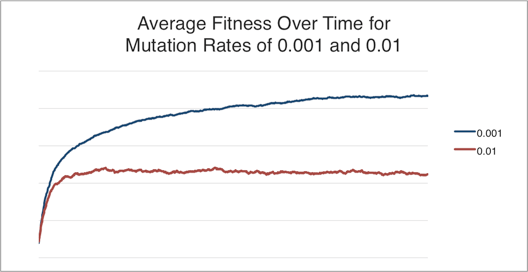
For example, increasing the mutation rate from 0.001 (1 in 1,000) to 0.01 (1 in 100) has the following effect on the average fitness over time:

Given the impact that the mutation rate has on long term fitness of the population, how can we determine what the optimal mutation rate is? Can the chromosome’s mutation rate change over time? Can different sections of the chromosome evolve to have different mutation rates? What about the number of bits or the population size? These are a few of the things I hope to find out :)

How Workflowy Has Changed the Way I Work

workflowyI’ve been using this amazing web and iOS app called Workflowy for more than a year and a half and it has completely changed the way I work. I am such a big fan of Workflowy that it is the only web app that I’ve paid for that I didn’t have to simply because I want to support their company and see them thrive (their free plan allows you to create 500 items per month, their pro plan costs $4.99/month or $49/year).

In this post I’ll share in detail how I use Workflowy in the hope that you might try it and benefit from it as much as I have. If you already use it, maybe you will pick up a few ideas for your own workflow.

Workflowy Introduction

Below is Workflowy’s official two minute introduction video. If you’ve never used Workflowy, I highly recommend watching it before continuing because it will give you a quick overview of Workflowy’s core features which I’ll be referring to in this post.

[youtube https://www.youtube.com/watch?v=SOPYrxvojVo]

Note-Taking & Task Tracking

I’ve used a number of note-taking and task tracking tools over the years including pen and paper, Outlook, Notepad, Remember The Milk, Tooledo, and Evernote.

Workflowy is hands-down the best note-taking app I’ve ever used because of how smoothly it lets you create and organize lists. You can have hundreds of notes on dozens of different topics but keep them all tucked away until you need them. There’s also a quick search feature that you can use to locate notes if you forget where you stashed them.

For task tracking, Workflowy works well when you don’t have a lot of hard or recurring deadlines. If you do have a lot of tasks that have to be completed by certain times (you have these 6 meetings today, X is due every Tuesday at 4pm, Y is due every third Friday by noon, etc) having a todo list application that lets you sort by deadline would probably better suit you.

How I Organize Workflowy

Below is a screenshot of a template that mirrors how I use organize my Workflowy lists. You’ll find a description of each list in the next section.

Items in gray are placeholders for example content that would go within the various lists.

workflowy_demo_template

Tasks

My Tasks list contains everything that I have to do including project tasks, miscellaneous tasks, as well as appointments and deadlines.

When I first started using Workflowy I kept project tasks as list items under projects, miscellaneous (non-project) tasks under a separate Misc Tasks list, and didn’t include appointments or deadlines at all. I’ve found that keeping all tasks, appointments, and deadlines grouped near each other works much better because you can quickly reference what’s on your plate without searching through a dozen different lists. If you prefer to keep your project tasks grouped under your projects, you can tag each task using something like #task and then use Workflowy’s search feature to view just those items.

I divide the Task list into three lists based on how soon each task needs to be accomplished. Short Term tasks are things that I need to do within the next week or so, Medium Term tasks are tasks that I need to do within the next few weeks, and Long Term tasks are tasks that I need to do within the next few months.

My GMail inbox also serves as its own todo list where unread emails are things that still require some action on my part. I generally won’t move something from GMail over to Workflowy except in cases where I respond to an email and need to remind myself to follow-up in case I don’t receive a timely response.

The Short Term tasks are further divided by day of the week. I keep today at the top of the list and it contains the tasks, appointments, and deadlines that I have going on today. For example, Tuesday might include “9am: Fence quote” and “Refactor subdomain validation method.” Each task might also contain its own list with notes about the task. For example, I might have the name and phone number of the fence company coming out to give the quote. As I finish things, I mark them as complete (⌘+Enter on my Macbook) so that they disappear from the list. If I don’t wind up getting to a task on the day I intended, I just drag and drop it to the next day’s list.

I also keep track of appointments on my iPhone’s calendar app, but add them to Workflowy at the beginning of each week so that I can plan each day with the appointments in mind.

In addition to a list for each day of the week, I have a list called Overall that contains tasks that I want to do soon but haven’t picked a specific day to do them yet. I drag tasks from the Overall list to specific days as I find time to work on them. Sometimes I also include non-specific tasks here just to keep them on my daily radar. For example, “Drink less coffee”.

I move tasks from the Medium Term and Long Term lists to the Short Term list as they get closer or as I have time to work on them. If I find myself with some unexpected free time or need a break from whatever I’m working on, I’ll sometimes just knock out a medium term or long term task even if there are still short term tasks still left to do.

Projects

My project list contains all of the projects and initiatives that I’m working on. I group similar projects together to make it easier to browse. For example, I have an Automattic group with several different WordPress.com projects that I’m working on (“.CO Integration”, “Domain Name Registration and Mapping Flow”), a Housework group (“Fence Replacement”, “Mulch Removal”), a Software group (“Lean Domain Search”, “Preceden”), a Hobbies group (“Poker”, “Photography”, “Reading”), and several others. I also have a Misc group for projects that can’t be grouped with other projects and a Potential Projects list for projects that I might want to work on one day.

How you organize the the individual project lists will depend on the type of project. For example, for my Lean Domain Search project I have a sublist called A/B tests which lists all of its ongoing and planned A/B tests, a Marketing list for different inbound and outbound marketing initiatives, and an Ideas list for potential development tasks.

I’d recommend for every project you have an Ideas list where you jot down ideas and potential tasks for that project. Tasks that go here are things that you haven’t committed to doing, but you might one day. If you eventually decide that you want to act on one of these ideas, move it to your Tasks list and figure out how soon you want to do it (Short Term, Medium Term, or Long Term).

You should jot down all project ideas you have, good and bad, so that you don’t have to hold them in your head forever. I’ve found that the quickest way to clearing my head is to just write it all down in Workflowy.

Notes

Finally, my Notes list contains miscellaneous notes and lists I’ve taken in the past. This includes “Command Line Reference”, “Gift Ideas”, “Startup Ideas”, “Product Keys”, “Printer Ink” (HP 564XL), “Microconf Notes” (2012 and 2013), “Server Configuration Steps”, “Recipes”, and much more. If it isn’t a task and isn’t related to a project, I throw it in the Notes list.

I’d also recommend having an Archive list within your Notes list where you can move notes and lists that you don’t need to reference often, but that you don’t want to permanently delete.

Wrapping Up

The structure I outlined above began as a much simpler one that I started with when I started using Workflowy. It evolved over time to suit my needs and you may or may not find it practical for you.

If you’re not a big list maker or note taker, I’d recommend starting very, very small and slowly creating a system that suits your needs. Regardless of what tool you use to track your tasks or take notes, the tool serves you, not the other way around. In other words don’t get too caught up in doing it “correctly” — it’s more important that you stick with it and organize it in a way that’s useful and practical for you.

If you have any questions or feedback about any of this, don’t hesitate to leave a comment or drop me an email. Thanks!

Update: See also Workflowy Organization v2.

Pad and Quill iPhone Case Review

iphone4_lpb_cropped

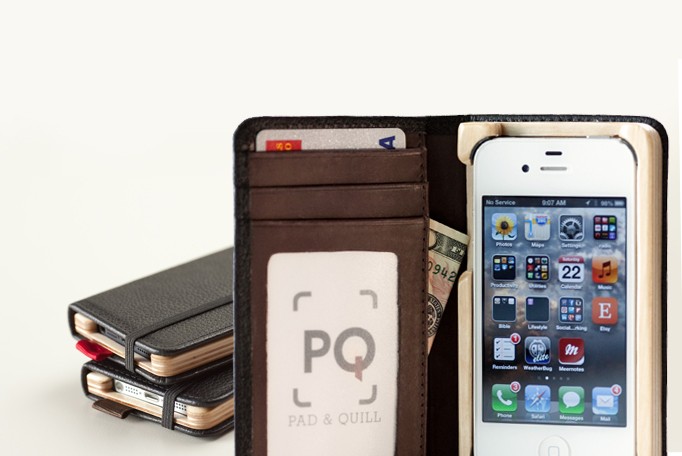
At the July Orlando Tech meetup I was talking to a local developer and at the end of the conversation he pulled out this strange looking iPhone case/wallet in order to grab a card for me. I asked him what it was and he said it was made by a Minneapolis-based company called Pad and Quill and that I could find it online if I Googled for the company name.

I found the case online the next day and ordered one for myself for $59.99. The case is called The Little Pocket Book and in addition to making iPhone cases Pad and Quill also makes cases for the iPod, iPad and several other devices. I went with mahogany brown for the cover and deep sea blue for the interior cover.

I’ve been using it for a little over a week and overall I have been very happy with it. I normally carry around my keys, my wallet, and my iPhone but with the Pad and Quill case I now just carry it and my keys, freeing up a lot of pocket space.

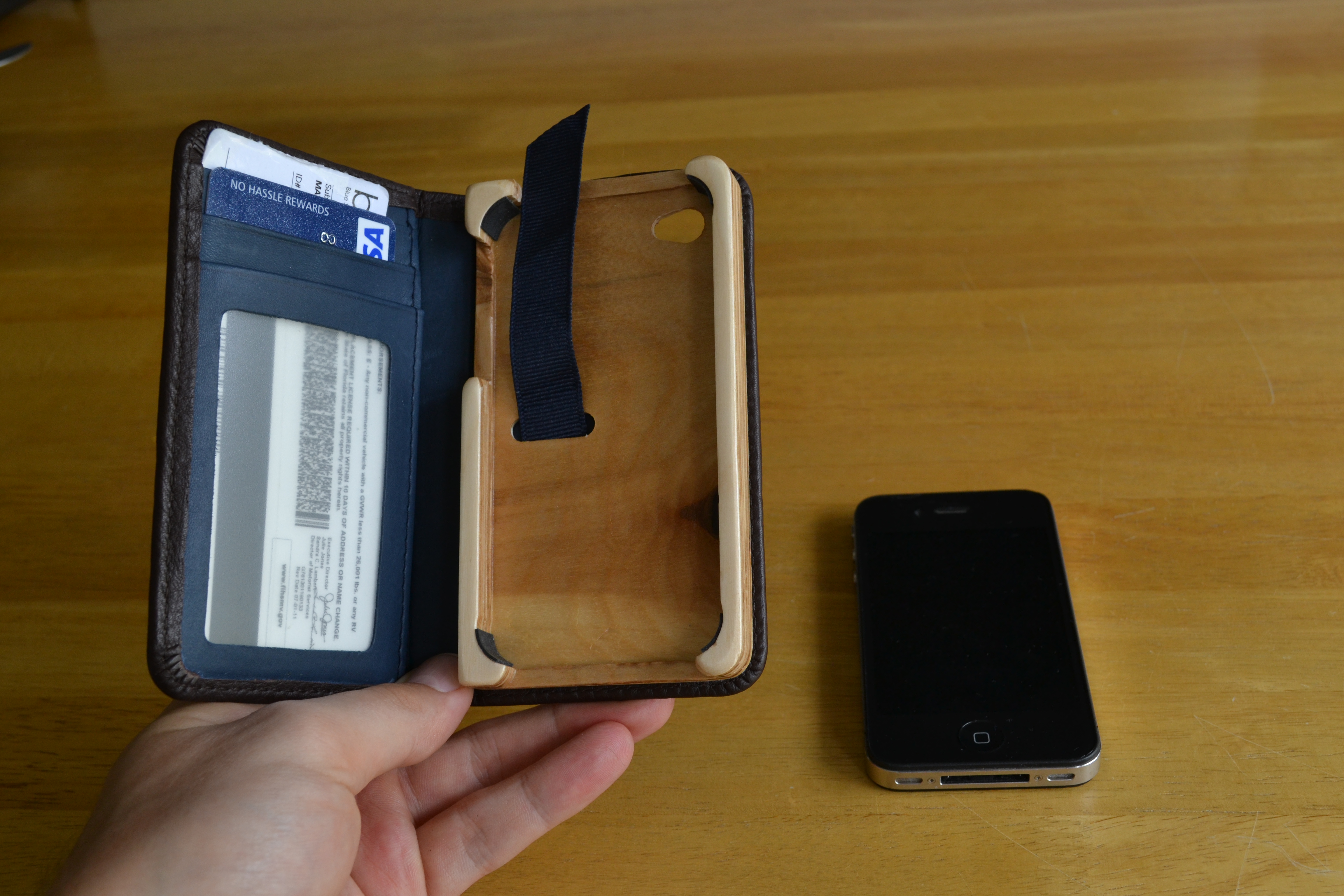
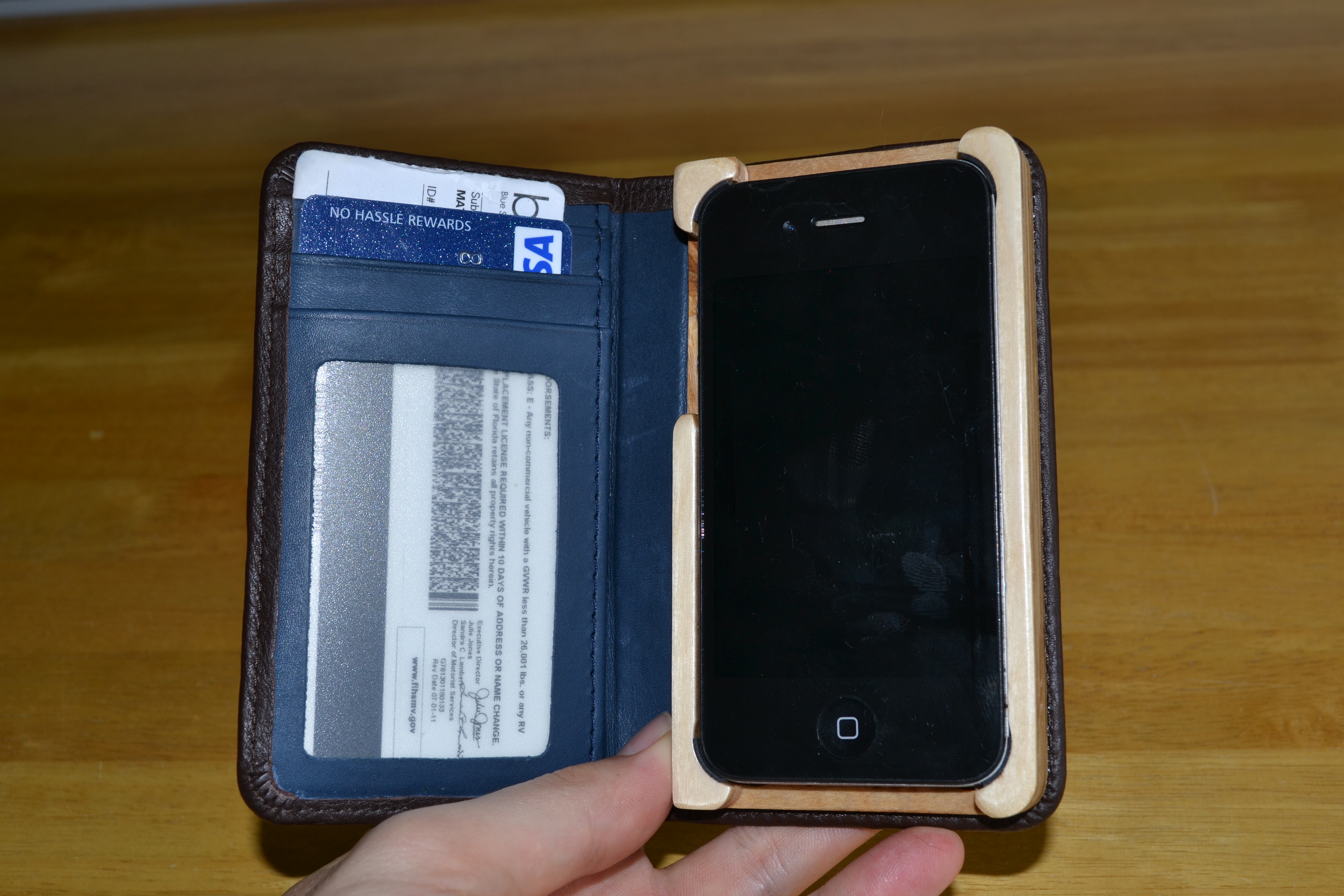
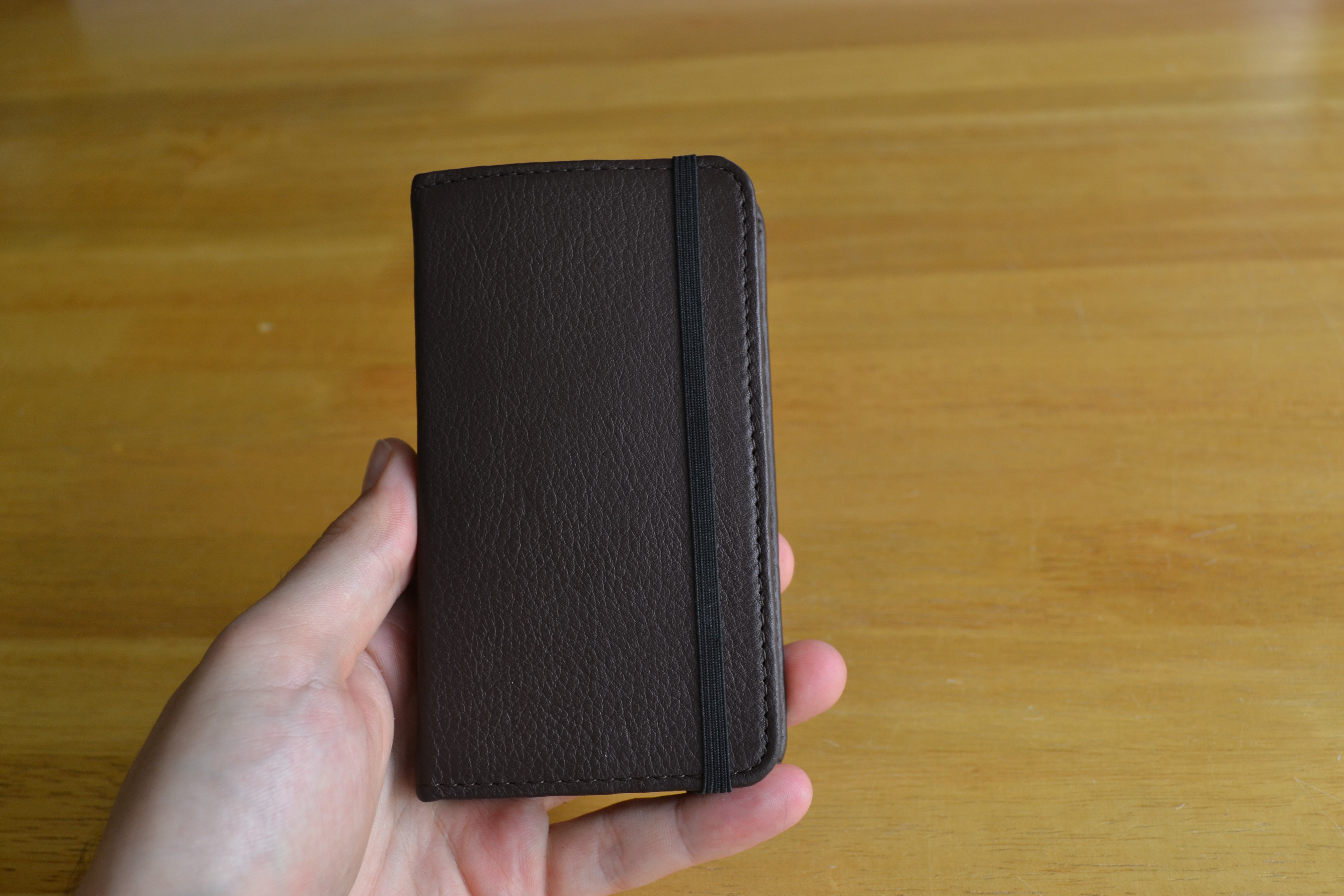
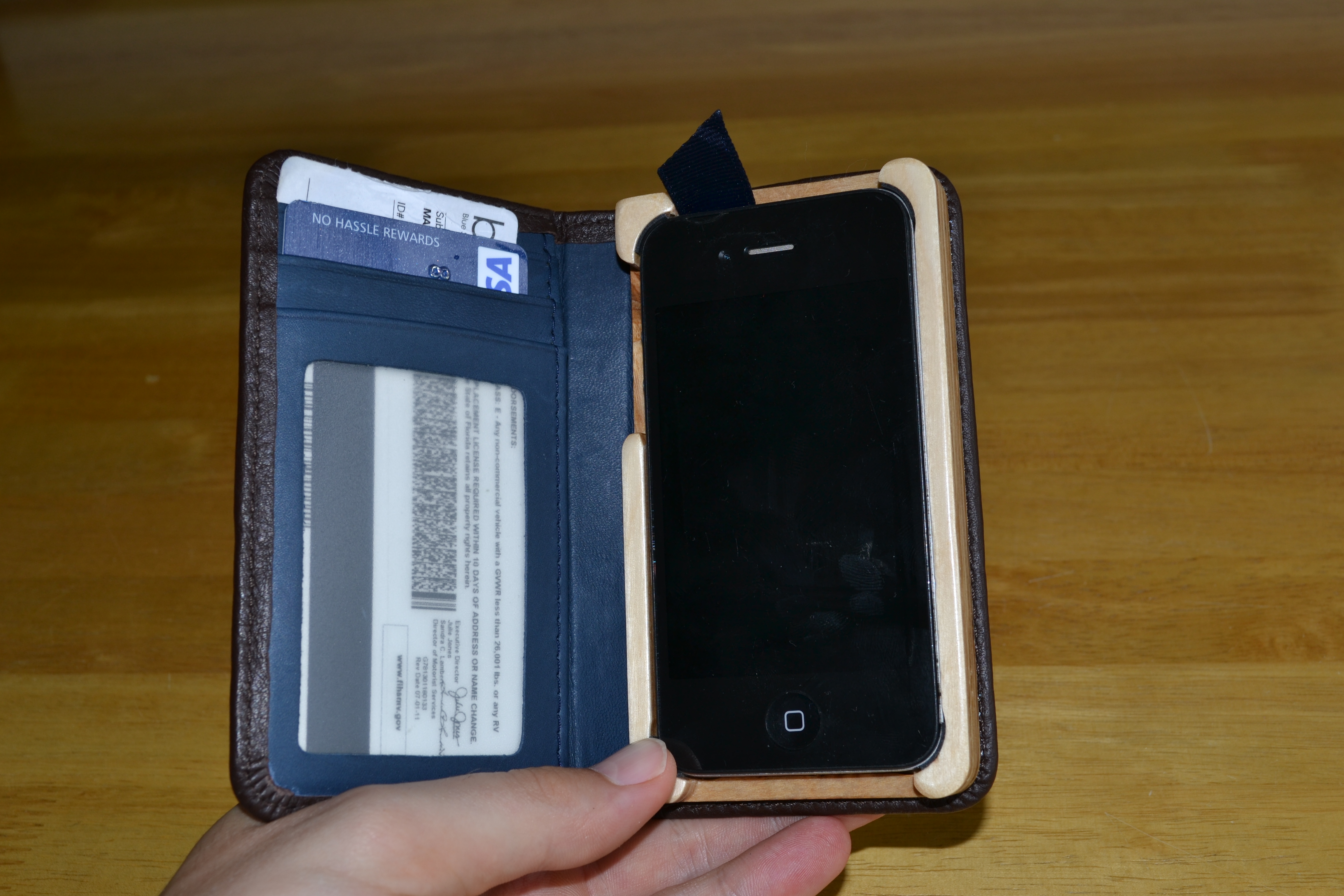
The left side of the case has three slots plus one behind it for additional storage space. The right side of the case is made of baltic birch plywood which holds your iPhone in place.

DSC_0425

DSC_0423

There is a strap on the back that holds it together whenever you need to carry it around:

DSC_0426

DSC_0427

One of the major adjustments for me was that you can’t carry around the same number of things that you would in a normal wallet. I had to get rid of all of the non-essentials so that now I just carry around my insurance card, my credit card, my driver’s license, and a small amount of cash. Even with just those items, the front cover does not sit flat without the strap to keep it tightly bound together:

DSC_0429

I originally expected to keep the iPhone in the Pad and Quill case whenever I needed to talk on the phone, but I’ve found it cumbersome so I usually take it out whenever I need to make or answer a call. Fortunately, there is a built in ribbon that you can leave hanging out so that it’s easy to extract your iPhone whenever you need to use it.

DSC_0424

If you’re looking for a new wallet or phone case, it’s definitely worth checking out.